Startup checklist when working with repositories
When both creating a new repository or cloning (creating a local copy) of an existing repository, certain “startup tasks” need to be completed. These typically only have to be performed once, when you create the local copy, not every time you work with the repository.
New repository (Python)
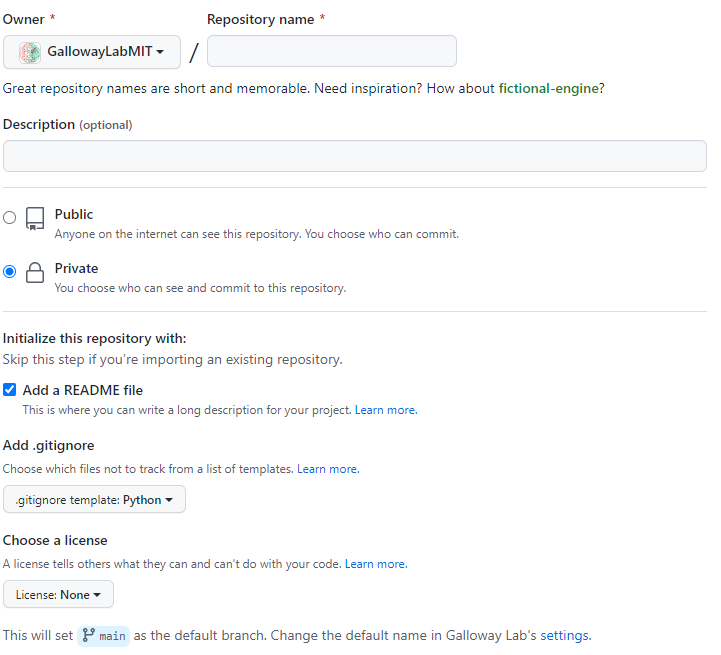
Create a new repository (aka repo) on Github, likely inside the GallowayLabMIT organization, by going to: https://github.com/organizations/GallowayLabMIT/repositories/new
When creating the repository, you likely want to check Add a README file. You should update this later with a description of the repository contents, as well as any non-standard setup instructions.
You should select Python as the
.gitignoretemplate. Setting the.gitignoremeans that Git will start off by ignoring all Python-related temporary files. You can update and modify the ignore list later.Unless you know what you are doing, you can leave the License field set to None initially.
Clone the repository to some local folder.
Note
A common pattern is to put all of your git repositories in a
repofolder in your home directory. Importantly, don’t put git repositories inside OneDrive or another cloud-synced folder; in addition to duplicated version control,gittracks lots of small files internally which means a lot of syncing effort.First, find the URL to the repository. You can get the link at the repository online under the green “Code” button. It probably looks something like
https://github.com/GallowayLabMIT/YourRepoName.git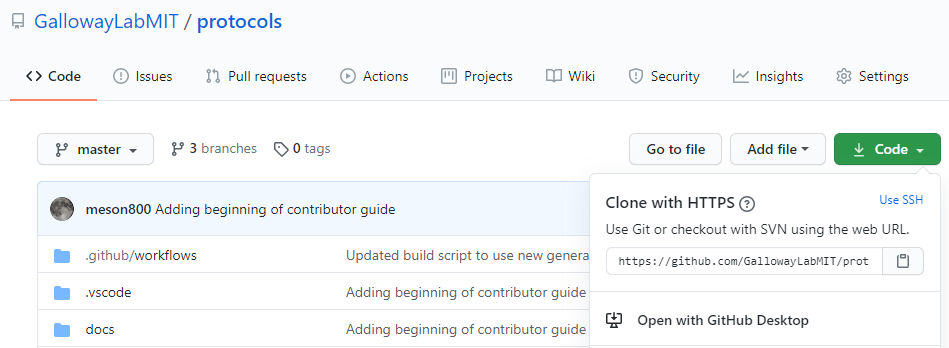
Then, clone (make a local copy of) the repo. There are several ways to do this, including the following:
In a terminal:
Navigate (
cd) to the local folder you want to put the repo in.Run
git clone URL, replacingURLwith the one you found above.
In VS Code:
Open the Command Palette (
ctrl-shift-porcommand-shift-p) and select “Git: Clone”.Paste the URL you found above, or search within your repos.
In the pop-up file explorer, select the local folder you want to put the repo in.
Open a terminal in the repository folder (i.e.,
cdinto the folder). It’s easiest to do this and the following steps inside VS Code.Create a virtual environment for this project.
Virtual environments enable standardization by creating local copies of packages. That way, the correct package versions are associated with your code, allowing for reproducibility by running in the same “container” each time. This only needs to be performed when you first clone the repo. If weird package errors happen later, you can always delete the environment folder and recreate it.
From the root of the repository (i.e., the folder containing
README.md) create the environment using thevenvPython module, passing the name of the virtual environment as an argument. In the command below, we give it the customary nameenv, but you can choose anything.$ python -m venv env # On Windows, most Linuxes $ python3 -m venv env # On modern macOS
Activate the virtual environment. This typically has to be done every time you open a new terminal or when you switch between projects with different virtual environments. Once the environment has been activated, any Python changes you do (installing packages, etc.) will only affect this environment.
$ source env/bin/activate # On macOS, Linux
> .\env\Scripts\activate # On WindowsNow, the prompt in terminal should begin with
(env), indicating your environment is active.Note
If you are working inside VS Code, right after you create the virtual environment, you may get a popup that says something akin to “New virtual environment detected. Do you want to set this environment as your project environment?” Answering yes means that all launched Python instances will use that environment by default. (Convenient!)
If you don’t see the popup, you can also set the Python environment through the Command Palette. Press
ctrl-shift-porcommand-shift-p, search for “Python: Select Interpreter”, and click the Python installation in your newly created virtual environment.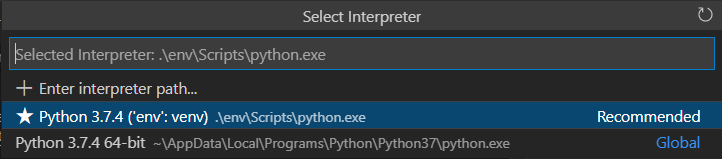
Install the packages you need. For data analysis projects, this is likely
pip install ipykernel matplotlib nb-clean numpy pandas rushd scipy seabornThese packages are useful for computing with arrays and statistics (
numpy,pandas,scipy); plotting (matplotlib,seaborn); and running Jupyter notebooks (ipykernel,nb-clean), an interactive computing workspace that combines sections of code with text. Finally,rushdis a package developed by the lab for common tasks related to data loading, analysis, and plotting.If you are using
nb-clean, in the terminal runnb-clean add-filter. From then on, this package will automatically run alongside Git as a filter to remove extraneous notebook metadata.Save your environment into a
requirements.txtfile usingpip freeze > requirements.txt. This means other people can reproduce exactly the set of packages you just installed. If you install or update packages later, remember to update the requirements file by repeatingpip freeze > requirements.txt.If you will eventually load data from Smithsonian, create a
datadir.txtfile in the top-level folder of the repository. This file should contain one line with the full, absolute path to where Smithsonian syncs locally on your computer. You don’t need any quotes or other characters around the path.For instance, a path on macOS might look something like:
/Users/username/Library/CloudStorage/Nextcloud-kerberos@mit.edu@smithsonian.mit.edu/data
Mark items that Git should not track by adding them to your
.gitignorefile. This means adding a line in.gitignore(usually at the top) for each file or directory.Typically, this includes your virtual environment
envand any output files you save in a directory likeoutput, as you can always re-create these later. Other files likedatadir.txt,.DS_store(on macOS), and.vscodesave information relevant only to your local computer, so these should not be tracked by Git.Here’s an example:
# custom
env/
datadir.txt
output/
.vscode
.DS_store

# defaults continue below
...
This is a good time to commit your changes, probably with a commit message like “repo setup”.
You can do this in the terminal with
git commit -m "Your message", or in VS Code in the “Source Control” pane. For the latter, stage changes first by clicking the plus icon next to each change, type your commit message in the box, and click the blue “Commit” button.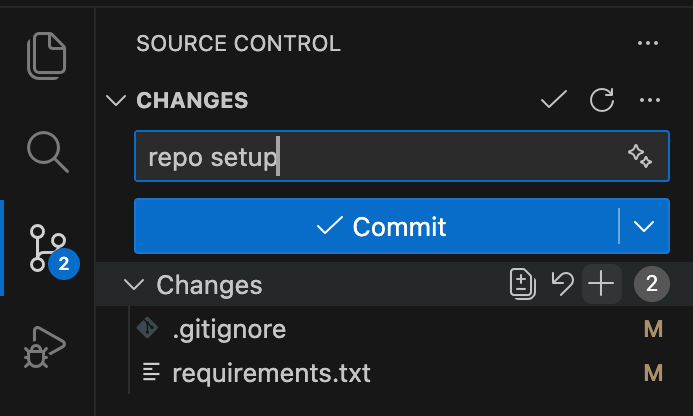
New repository (Julia)
Follow steps 1-3 above for creating a new repository. Except, select Julia as the
.gitignoretemplate.Start a Julia instance inside a local virtual environment by typing
julia --project=.into a terminal. Unlike Python, you do not have to pre-create a virtual environment, and you specify a virtual environment at launch using the--projectsyntax.Inside the Julia prompt, press
]. The prompt should change to(folder_name) pkg>. Typeadd pkg1 pkg2to install packages (replacingpkg1, etc. with package names) into the virtual environment.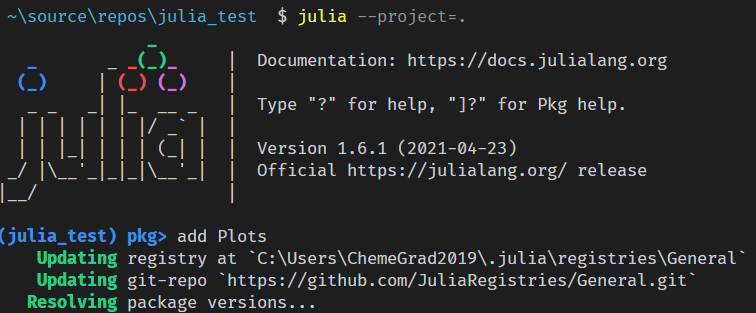
Note
When you add or update packages later, be sure to commit the
Manifest.tomlandProject.tomlfiles! These describe how others can reproduce your set of packages.Once you have
.jlfiles, VS Code should auto-select your local virtual environment. If it doesn’t, you can open the command palette (ctrl-shift-porcommand-shift-p) and search for “Julia: Change Current Environment” and select your newly created environment.
New repository (R)
Warning
TBD. R does not have a virtual environment system built-in, and this system is also bad compared to others. It is really hard to decouple system state in a reproducible way in R compared to Julia and Python.
A possible best practice environment (Dockerized containers) is currently under beta testing.
Existing repository (Python)
Follow steps 2-5 for “New repository (Python)” above to clone the repo, create a virtual environment, and activate it.
Install the current package versions for this project using
pip install -r requirements.txt.If using Jupyter notebooks, run
nb-clean add-filterto register the cleaning filter with Git.If using
rushd, add adatadir.txtfile to the root folder of the repository. This file should contain one line with the full, absolute path to where Smithsonian syncs locally on your computer. You don’t need any quotes or other characters around the path.For instance, a path on macOS might look something like:
/Users/username/Library/CloudStorage/Nextcloud-kerberos@mit.edu@smithsonian.mit.edu/data
Any additional setup should be described in the
README.mdfile of the repository.
Existing repository (Julia)
Clone the repository, following steps 2-3 for “New repository (Python)” above.
Start Julia within the virtual environment using
julia --project=.Enter package mode by pressing
]Run
instantiateto automatically install the reproducible list of packages in the Manifest and Project files.Any additional setup should be described in the
README.mdfile of the repository.