Software tips and tricks
Naming, and one date format to rule them all
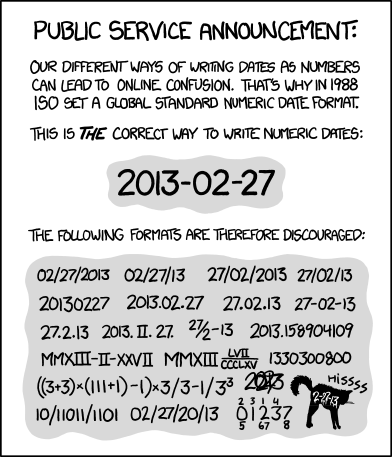
In file naming schemes, we typically use the YYYY-MM-DD format. The separators
don’t typically matter, you could use dashes or underscores or periods. (Most of the time, we use periods.)
This date format is both unambiguous and also sorts well (i.e., a lexicographic/alphabetical sort sorts in the correct time order).
Finally, avoid using spaces in file and directory names! It’s not a problem for most code, but it’s a best practice that makes typing these paths in easier in a terminal.
Paper RSS feeds
Staying on top of the firehose of papers can be difficult. Using a RSS (Really Simple Syndication) aggregator can be helpful. RSS is a relatively old technology that allows for websites to push lists of content over time; the first podcasts were actually syndicated/released using RSS.
Most journals have RSS feeds; you can find it by searching for a journal name + rss,
or by looking around with the RSS icon: 
For example, the main Nature feed lives at: http://feeds.nature.com/nature/rss/current
After finding some feeds you are interested in, you likely want to use a feed aggregator, something that combines all of the new pushed papers into a single feed. A very popular feed aggregator is Feedly. It has a website and mobile apps. The free version is more than sufficient for most purposes; it lets you combine up to 100 RSS feeds into 3 separate feeds.
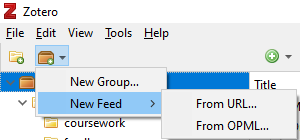
You can also view feeds directly in Zotero! If you export your feed list from Feedly as a OPML file, you can also direct-import it into Zotero.
Creating feeds from searches
Sometimes you want to have a feed of papers matching some search terms. You can easily do this with Pubmed and ProQuest; whenever a new paper that matches your search terms gets added, it will get added to your RSS feed aggregator. Unfortunately, Google Scholar does not allow you to create RSS feeds (this would easily enable competition with their services).
For Pubmed searches, start at https://pubmed.gov, and design your search. You may want
to be pickier; a search for just p53 is going to return a lot of junk!
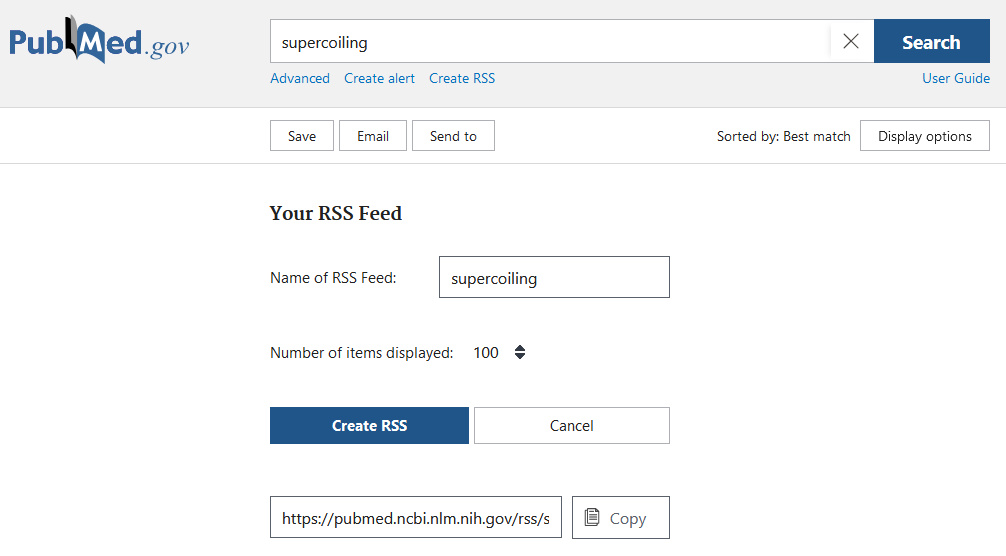
After you have a search of your liking, click the Create RSS button, and bump up the
returned number of items to 100. Then, you can directly use that feed URL in Feedly or Zotero!
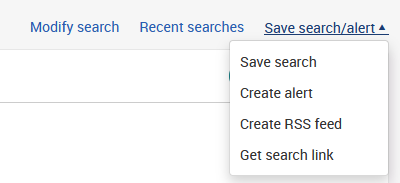
To add a Proquest feed, you can go to https://search.proquest.com, make a search, then click the “Save search/alert” button to create a RSS feed:
However, because Proquest is a MIT-sponsored database, you may have trouble accessing feed items outside of the MIT network.
Zotero
There are several built-in features of Zotero that make paper reading more efficient.
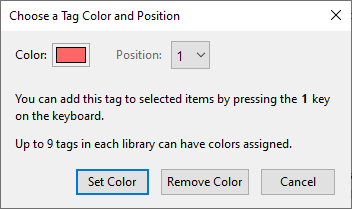
Color tags: Zotero sometimes adds automatic tags based on article metadata, but you can also add tags of your own under the details menu. In addition, you can select up to 9 tags at any one time as quick/color tags. In the tag menu in the bottom left, right clicking on a tag lets you assign a number and a color; tagged entries will have small colored squares viewable at a glance.
Notes: When you add notes through the sidebar, they become fully searchable! You can also embed images and other content within notes. This is particularly helpful for summarizing papers. A template for notes might look like the following:
One-sentence summary:


Highlights/claims:

Relevance:

Limitations:

Extensions:
Full-text searching: The search bar has several available options through the dropdown. Switching to “everything” includes full-text searching of linked PDFs (e.g. it will look for phrases inside every linked PDF)!
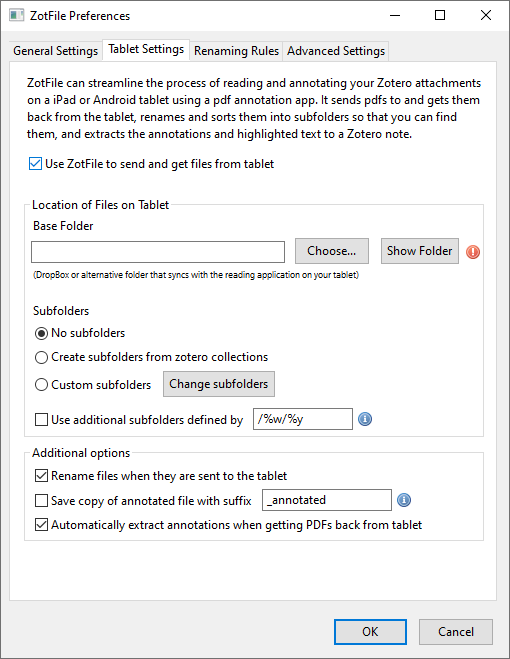
Tablet syncing: If you install the Zotfile extension, you can setup automatic transfer and syncing with a tablet for annotation purposes. You will need some cloud syncing application (Dropbox, OneDrive, Google Drive) that is accessible both on your computer through your annotation app on your tablet. Point ZotFile at this folder, and it will automatically check for updates and pull the annotated PDFs back into Zotero.
Regex
Regular expressions, or “regex”s are used for pattern-matching strings (words). This is useful for searching for files with names
that follow a particular structure. For instance, the Python package rushd developed by the lab uses a regex to extract
metadata from filenames when loading flow cytometry data in Python. Here’s one tutorial
with examples to learn more about regular expressions.
If you ever need help designing or debugging a regular expression, try using https://regex101.com/ Be sure to change the “Flavor” on the left to Python, or whichever language you’re using.
YAML files
Several lab workflows use YAML files to add metadata to images, flow data, etc. YAML is a language/syntax commonly used for metadata or configuration files, similar to the JSON format.
A quick tutorial can be found here: https://learnxinyminutes.com/docs/yaml/ and the official introduction is here: https://www.yaml.info/learn/index.html
Activate SnapGene remotely
MIT uses a network license that can only be activated from an MIT IP address. To activate remotely, you can tunnel traffic through the Athena cluster via the following:
Run
ssh -D8080 KERBEROS@athena.dialup.mit.edu
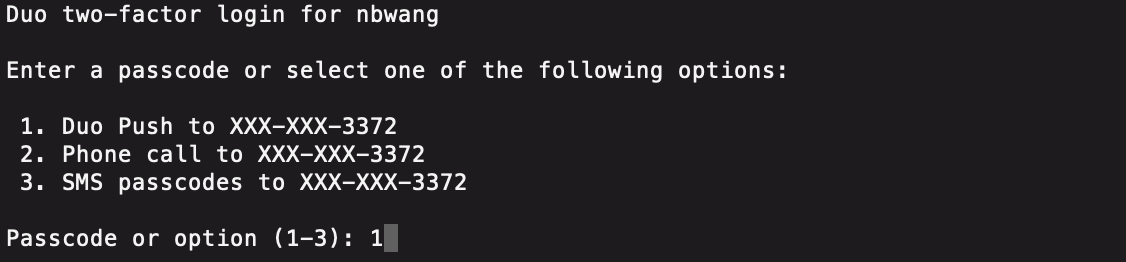
Login with your MIT password and do a Duo push in bash/powershell/etc. Leave this window open.
Set your system proxy settings to use a SOCKS v5 proxy to localhost , port 8080
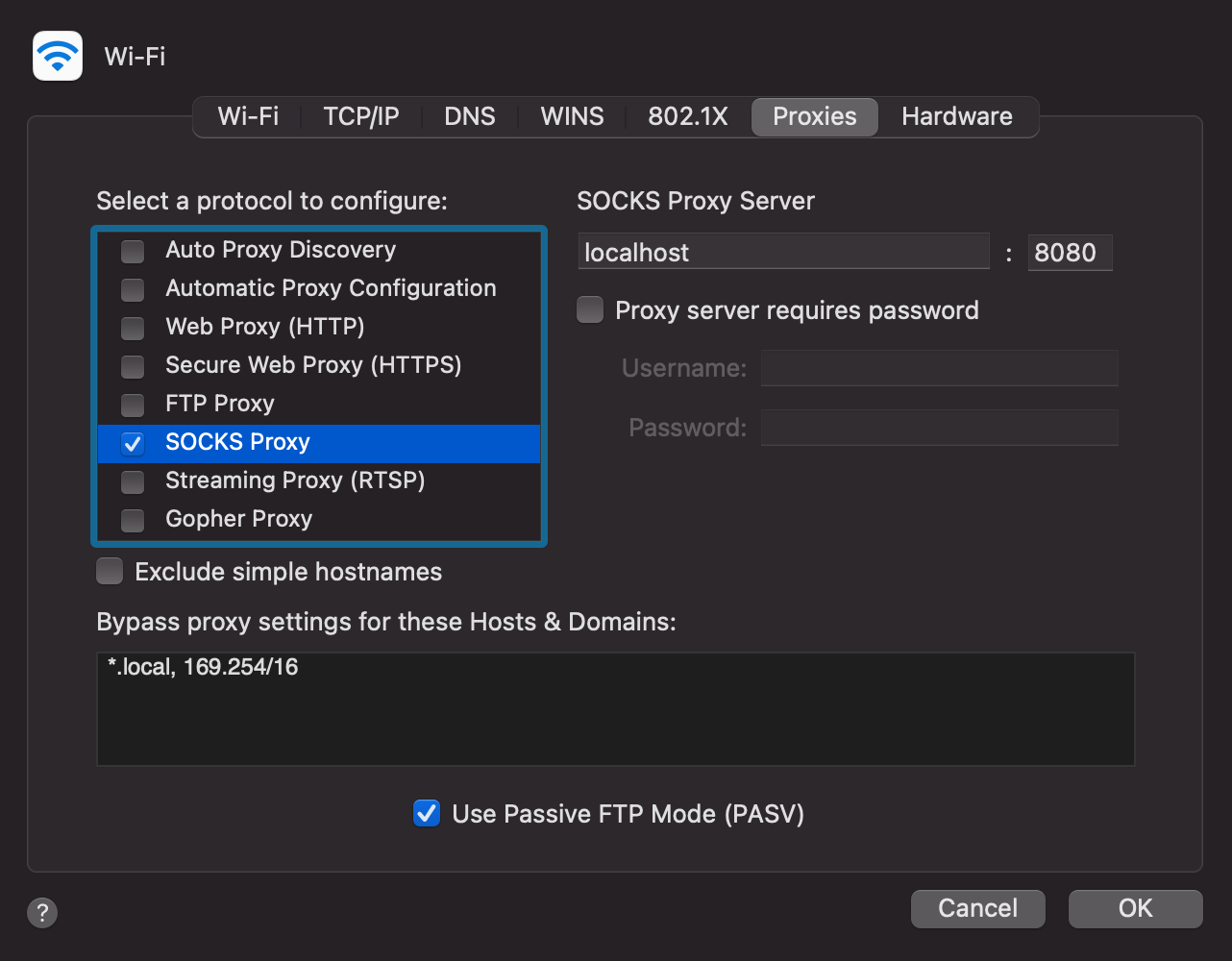
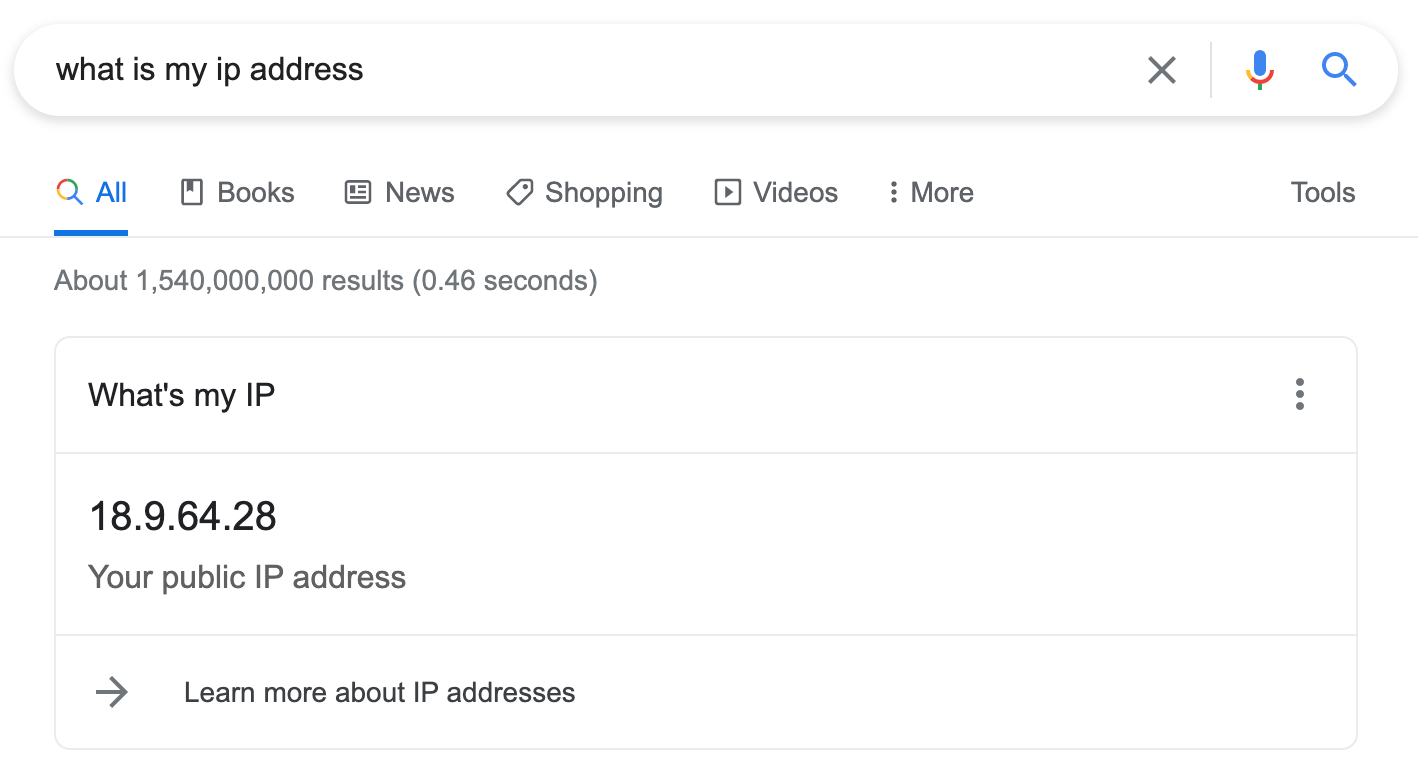
Check that the system proxy works by typing “what is my ip address” into Google. You should get an IP starting with 18